

User guides
Leceipt MCP Guide
Leceipt MCP lets you work with Leceipt in plain language through AI apps such as Claude, ChatGPT and Gemini. Ask the AI to draft and issue a quotation, summarize your sales or find a document. You sign in with your existing Leceipt account, with no API key and no code.
Last updated: October 2026. The Claude, ChatGPT and Gemini screens may differ from the screenshots in this guide.
1. What is Leceipt MCP
MCP (Model Context Protocol) is a standard that lets AI apps connect to other systems. Once Leceipt is connected, you type what you need in the chat and the AI uses Leceipt for you, for example:
- “Issue a quotation to ABC Co., Ltd. for consulting services, 5,000 baht before VAT”
- “Summarize sales and VAT for September 2026”
- “Which documents this month have not been sent to the Revenue Department yet?”
- “Give me the PDF of receipt RT2026090001”
- “How many more documents can I issue this month?”
What the AI can do
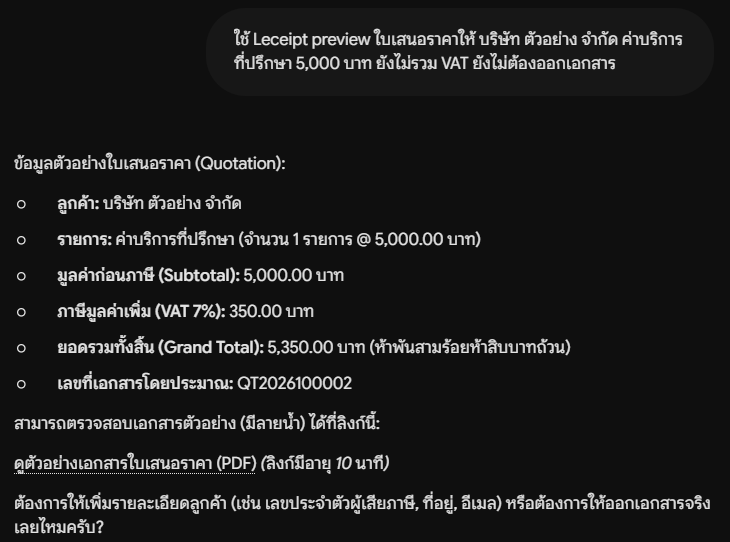
- Draft all 12 document types and show a preview (amounts, tax, the expected document number and a watermarked sample PDF) before issuing
- Issue documents and give you the document number and a PDF download link
- Search and open documents by date range, type or number
- Email documents, submit XML files to the Revenue Department and check the delivery status (depends on your package, see section 8)
- Delete documents and restore deleted ones
- Summarize sales and VAT, check for duplicate numbers and show how many documents you can still issue
Leceipt MCP has no extra cost. Documents issued through AI count toward your package in the same way as documents issued on the web.
2. Before you start
- A Leceipt account with a company set up at my.leceipt.com
- An account for the AI app you want to use (Claude, ChatGPT or Gemini)
- The connection URL:
https://api.leceipt.com/mcp
| Capability | Claude | ChatGPT | Gemini |
|---|---|---|---|
| Preview a document before issuing | ✅ | ✅ | ✅ |
| Issue documents | ✅ | ⚠️ May be blocked by OpenAI (details) | ✅ |
| Search documents | ✅ | ✅ | ✅ |
| Download documents | ✅ | ✅ | ✅ |
| Check documents | ✅ | ✅ | ✅ |
| Analyze document data | ✅ | ✅ | ✅ |
| Summarize sales | ✅ | ✅ | ✅ |
| View the output tax report | ✅ | ✅ | ✅ |
3. Connect to Claude
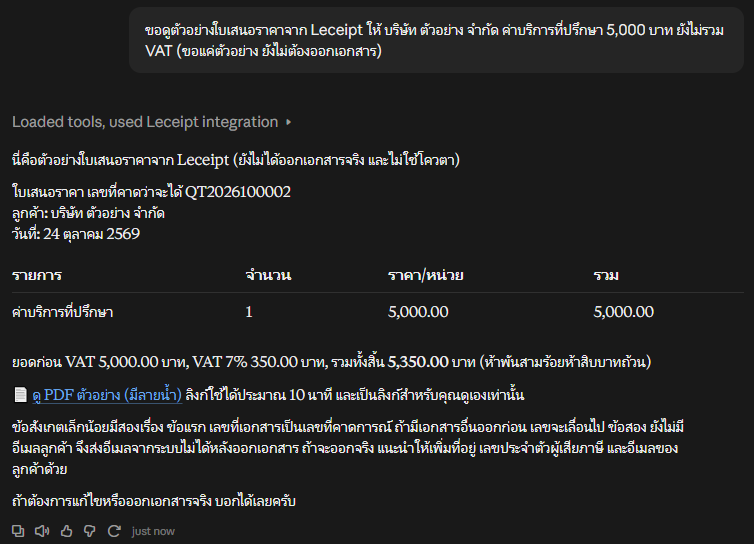
- Open claude.ai, go to Settings → Connectors, click Add and choose Add custom connector
- Enter a name such as
Leceipt MCPand the URLhttps://api.leceipt.com/mcp, then click Continue - Click Connect. The Leceipt sign-in page opens; sign in with your Leceipt account
- Choose the company and permissions on the Leceipt consent page and click อนุญาต (Allow) (see section 6)
- Go back to the chat and try something like “Summarize this month’s sales from Leceipt”
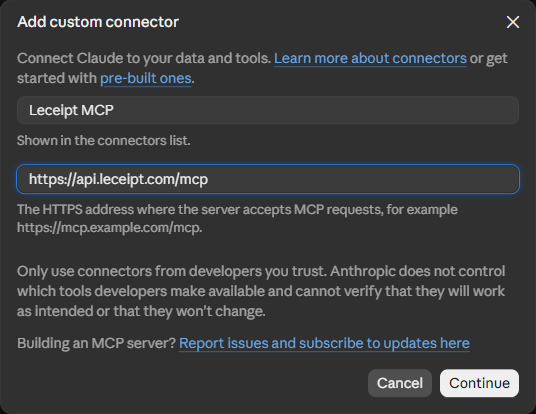
When the AI wants to use a Leceipt tool, Claude asks you first. Click Allow once to allow it one time. We recommend Allow once every time for issuing, emailing, submitting to the Revenue Department and deleting documents. Avoid Always allow.
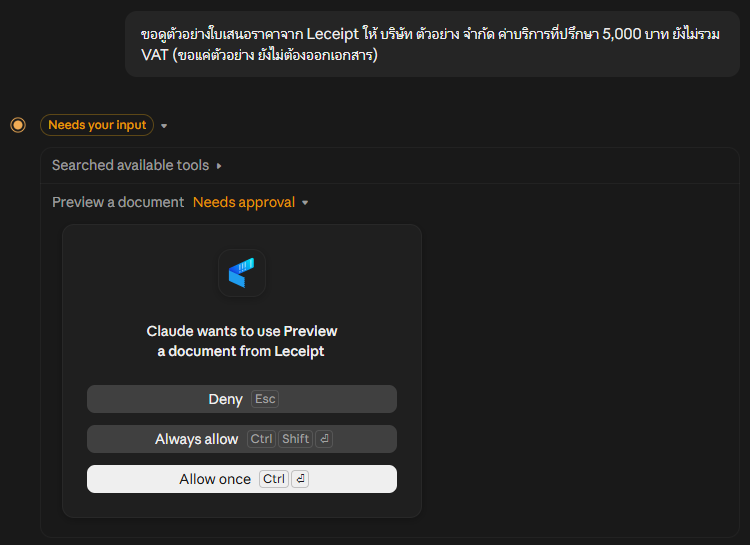
Example result: Claude shows a preview of the quotation with the amount, VAT, the expected document number and a link to a watermarked sample PDF. If everything is correct, confirm in the chat to issue the real document.
4. Connect to ChatGPT
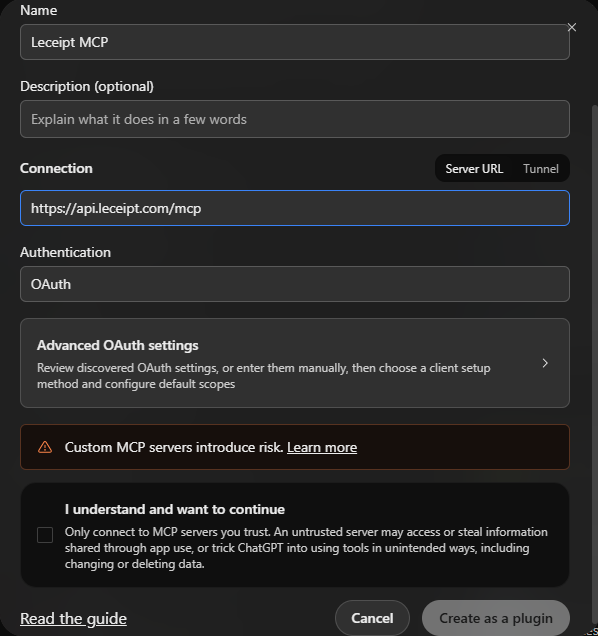
- Open chatgpt.com/plugins (the Plugins menu), click Add and choose Add custom MCP server
- Name:
Leceipt MCP. Connection: Server URL, then enterhttps://api.leceipt.com/mcp. Authentication: OAuth - Read the warning, tick I understand and want to continue, then click Create as a plugin
- Sign in with your Leceipt account, choose the company and permissions on the Leceipt consent page and click อนุญาต (Allow)
- In a new chat, say that you want to use Leceipt, for example “Use Leceipt to preview a quotation for …”
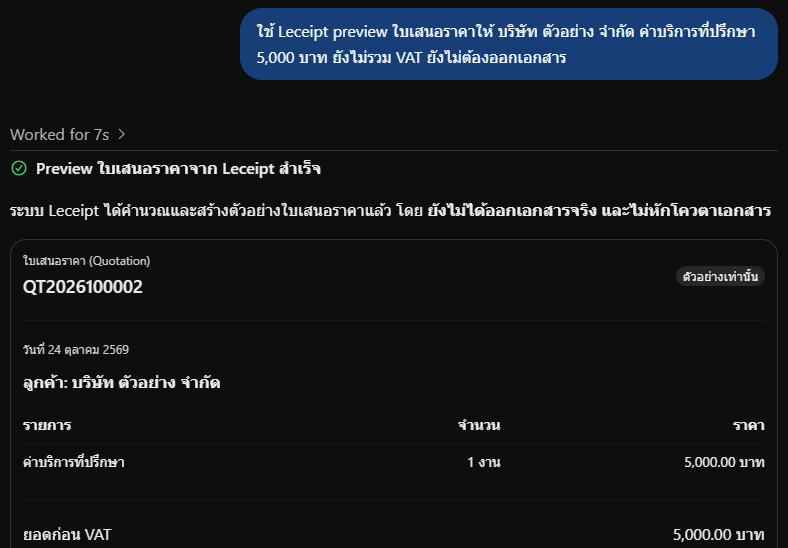
ChatGPT Business / Enterprise: a workspace admin must allow the plugin to perform write actions. Allowing only low-risk tools is not enough to issue documents.
Issuing documents in ChatGPT: since October 2026, OpenAI’s safety checks sometimes block the issue command with the message “This tool call was blocked by OpenAI’s safety checks. Please double check what you are sending.” This happens on the ChatGPT side and the request never reaches Leceipt, so no document is created, no quota is used and no document number is taken.
What to do:
- Start a new chat, ask the AI for a new preview and confirm again
- Use ChatGPT to view data and previews, then issue the document at my.leceipt.com
- Or use Claude or Gemini to issue documents
5. Connect to Gemini
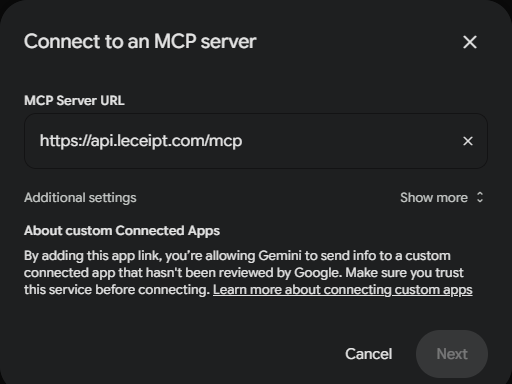
- Open gemini.google.com, type @ in the chat box and choose View all connectors
- Click + Custom, enter the MCP Server URL
https://api.leceipt.com/mcpand click Next - Sign in with your Leceipt account, choose the company and permissions on the Leceipt consent page and click อนุญาต (Allow)
- In a new chat, say that you want to use Leceipt, for example “Use Leceipt to preview a quotation for …”
6. The Leceipt consent page
After you sign in, Leceipt shows a page asking you to allow the AI app that is connecting, such as Claude, ChatGPT or Gemini, to access Leceipt. Always check the app name first, then choose:
- Company (บริษัท) — if your account has several companies, choose the one the AI may use. Each connection uses one company; to use another company, disconnect and connect again
- Permissions (สิทธิ์) — viewing documents, sales summaries, quota and previews is always included. Issuing, emailing, submitting to the Revenue Department, and deleting or restoring documents can be unticked if you want the AI to view data only
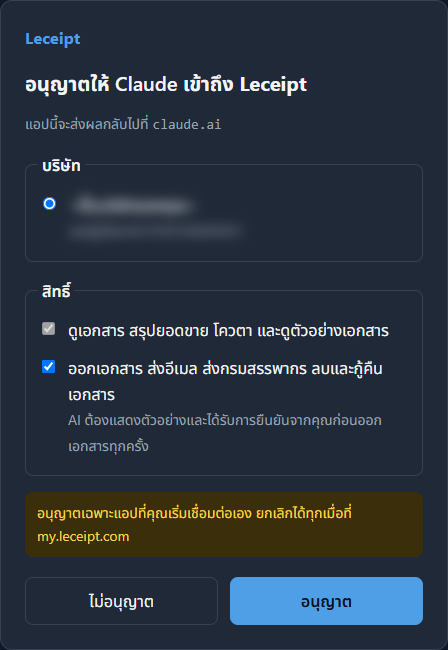
Click อนุญาต (Allow) to connect or ไม่อนุญาต (Deny) to cancel. The consent page is currently in Thai only. Only allow apps that you started connecting yourself.
7. View and disconnect AI apps
At my.leceipt.com, go to Settings → AI Connections to see the AI apps you have allowed, with the company, permissions, the date allowed and the date last used.
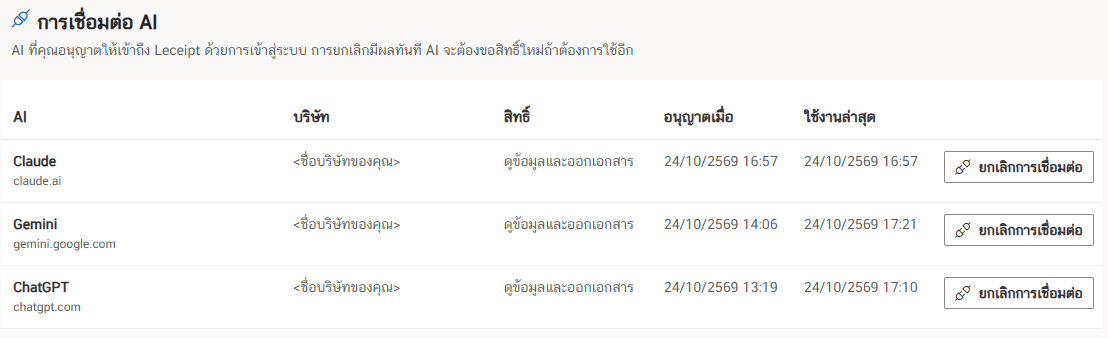
- Click Disconnect and confirm. The AI loses access to Leceipt immediately
- After you disconnect, existing chats can no longer use Leceipt (they may not answer or may show an error). To use it again, click Connect in the AI app
8. Paper and e-Tax packages
| Task | Paper package | e-Tax package |
|---|---|---|
| Draft, preview and issue documents | ✅ | ✅ |
| Email documents | Quotations, invoices, billing notes and delivery notes only | ✅ All documents (PDF) |
| Submit XML files to the Revenue Department | — | ✅ |
See package details on the pricing page.
9. Security
- Every document is confirmed before it is issued. The AI must show a preview first and can only issue a document that matches the preview you saw. If the data changes, a new preview is needed (previews expire after 15 minutes)
- Do not set automatic approval for issuing, emailing, submitting to the Revenue Department or deleting documents
- Download links expire after 10 minutes and anyone with the link can download the file, so do not share them
- Leceipt never asks for your password in a chat. You only sign in on Leceipt’s own page
- Review the AI Connections page from time to time and disconnect apps you no longer use
10. FAQ and troubleshooting
I added the connector but it cannot connect
Check that the URL is exactly https://api.leceipt.com/mcp with no spaces or trailing /, then try again. With an organization account, an admin may need to allow custom connectors first.
The consent page says there is no company in this account
Create a company at my.leceipt.com first, then connect again.
The AI does not answer or shows an error after I disconnected
This is expected. Click Connect again in the AI app and allow access again.
ChatGPT says “This tool call was blocked by OpenAI’s safety checks”
See Issuing documents in ChatGPT. No document is created and no quota is used.
I chose the wrong company or want to change permissions
Disconnect on the AI Connections page, then click Connect again and choose the company and permissions you want.
Can the AI issue documents without asking me?
No. Leceipt only issues a document that has been previewed, and the AI app asks you before it uses a tool that changes data.
Still stuck? Contact LINE OA: @Leceipt or email support@leceipt.com
11. For developers
If your tool accepts an API key, such as Claude Code, Codex CLI or Antigravity CLI, see the setup steps at developers.leceipt.com under Connect AI (MCP).